Tive for Zoom

Nov 19, 2025

Overview

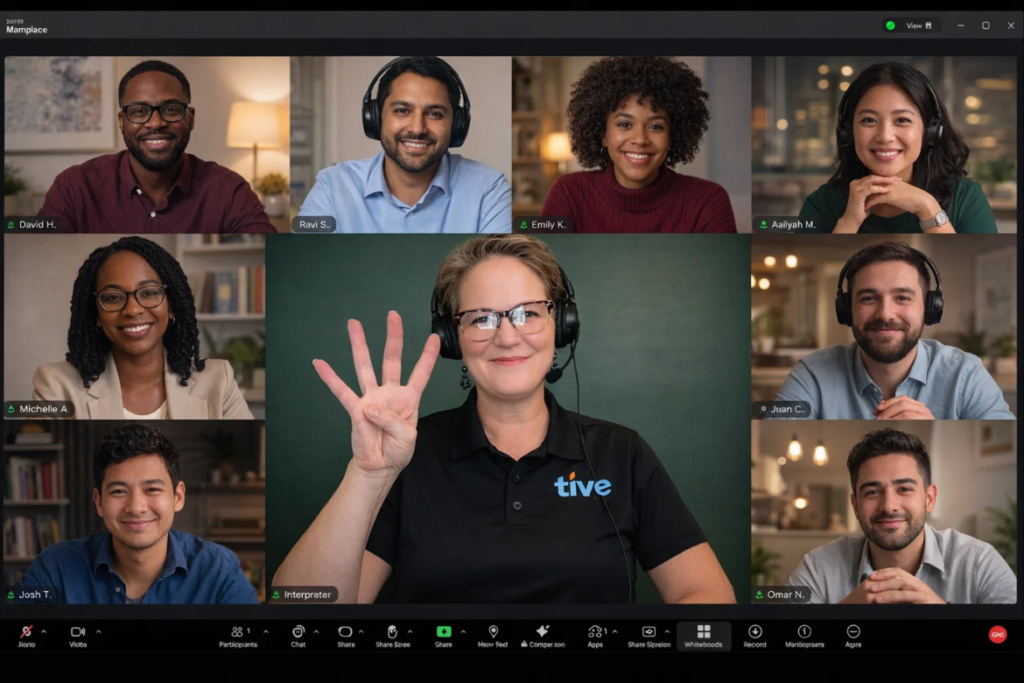
This document is a guideline on how to use Tive for Zoom for your meetings when an ASL interpreter is a part of a meeting.

Note

Tive for Zoom is for use only on a PC or Mac. It will not work on mobile. You can find more details about Tive for Zoom on our landing page.

How to get Tive for Zoom app from the Zoom Marketplace

    1. Open your Zoom desktop app
    2. Click the Apps tab at the top (or click on More and choose Apps)

    1. Click Add Apps.

  1. Type “Tive for Zoom” in the search box.
  2. Click Add to install Tive for Zoom in your Zoom app.
  3. After the app is installed successfully, click Open.
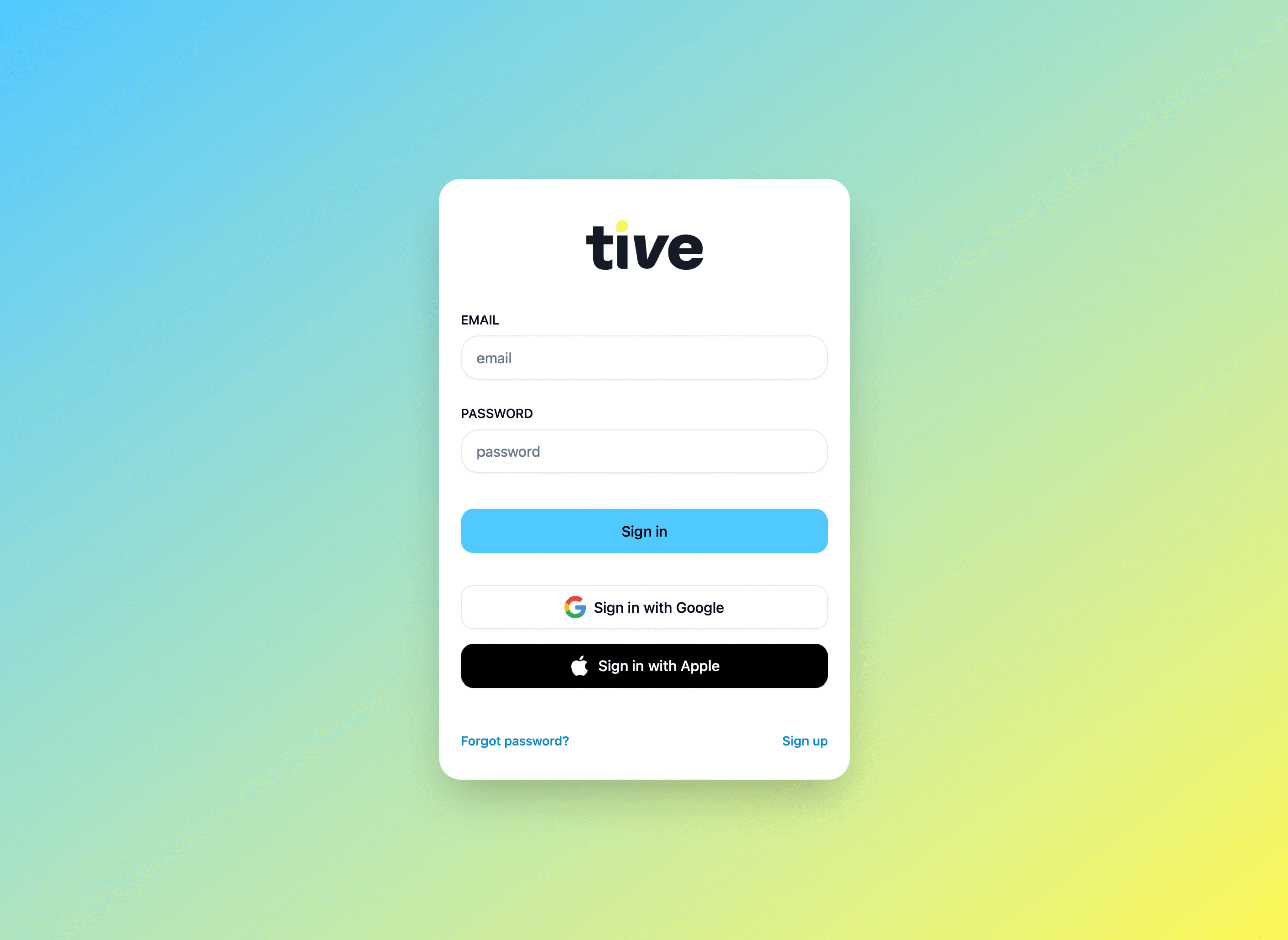
  4. Log in with your Tive email and password. (If you do not have a Tive account, please Sign Up here)


Login Screen

Tive for Zoom: How to get the Tive for Zoom app during a meeting

    1. Click Apps at the bottom of the Zoom window( or More option, then choose Apps).

  1. Click Add More Apps option

  • Type “Tive for Zoom” in the search box, and click Get to install Tive for Zoom.
  • Click Open to run the Tive for Zoom app.
  • Log in with your Tive email and password. (If you do not have a Tive account, please Sign up here)

Tip: You can open the Tive for Zoom automatically at every meeting by clicking the Auto-open in meetings option.

Requesting an ASL interpreter

Requesting an ASL interpreter if you are the meeting host
  1. When you’re in the meeting, click on the Request Interpreter button in the app sidebar on the right.

Note: Please request an interpreter during the meeting to ensure compliance with the FCC requirements.

Requesting an ASL interpreter if you’re NOT the meeting host

Note: Please do not use invite links from external apps (such as email or Slack), as they might not include the passcode needed for interpreter. Instead, follow the steps below to copy the full link from Zoom.

    1. Join a Zoom meeting
    2. Click the green shield icon at the top of your Zoom windows, then select the Copy icon.

    1. Paste the copied link in the MEETING URL textfield.

    1. Click the Request Interpreter button.

  1. In the Zoom meeting, click on Admin button to allow the interrupter to join a meeting.
  2. When the Interpret’s name appears, they will join the Zoom meeting shortly after.

Disconnect interpreter in meeting

  1. In the meeting, the host/participant can disconnect the interpreter by clicking the End Interpretation button, then select that interpreter as “Remove” option in the Zoom meeting.

How to remove Tive for Zoom app

  1. Select Zoom’s Settings.
  2. Select Zoom Apps option.
  3. Click Manage apps.
  4. Click Remove.
  5. Confirm Remove again.